
The steps below are based on the Outlook Computer Plaorm. For any other plaorm like Bluemail
etc, you can Skip step a – c and start off from step d.
a. Click your windows start buon and search for control panel and open it.
b. In Control Panel, click the search box and search for MAIL and open it.
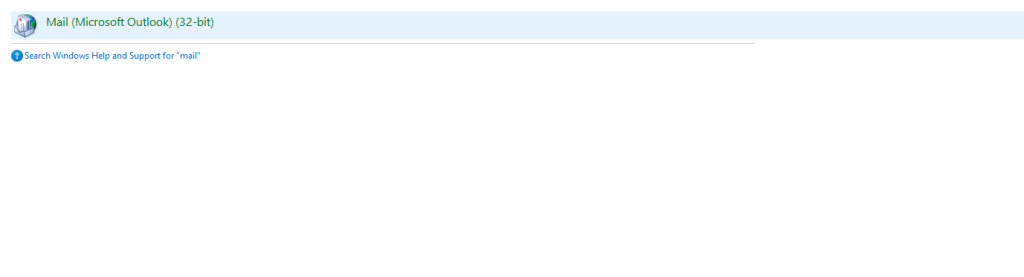
c. If you have other outlook profiles already, you can click Email accounts under Mail Setup. If
you do not have any account, click Add Profile and you can give it a random name then you
proceed.
d. Under Account Settings, Click New and Select Manual Setup or additional server types.
e. Choose POP or IMAP as the account type.
f. Fill it the User, Server and Login Information.
a. User Information:
i. Name: eg. John or My Company Sales.
ii. Email: The Email that you want to login to.
b. Server Information:
i. Account Type: Select IMAP
ii. Incoming Server: mail.mycompany.co.zw. Replace mycompany.co.zw with your actual web address or domain name eg. mail.vertico.co.zw
iii. Outgoing Server: mail.mycompany.co.zw. Replace mycompany.co.zw with your actual web address or domain name eg. mail.vertico.co.zw
c. Login Information: Enter the login details of the email that you want to login.
i. Username: The Email that you want to login to.
ii. The password you created in Section 2.3.
g. Click more settings and navigate to the Outgoing Server Tab.
h. Click my outgoing server (SMTP) requires authentication and move on to the Advanced Tab.
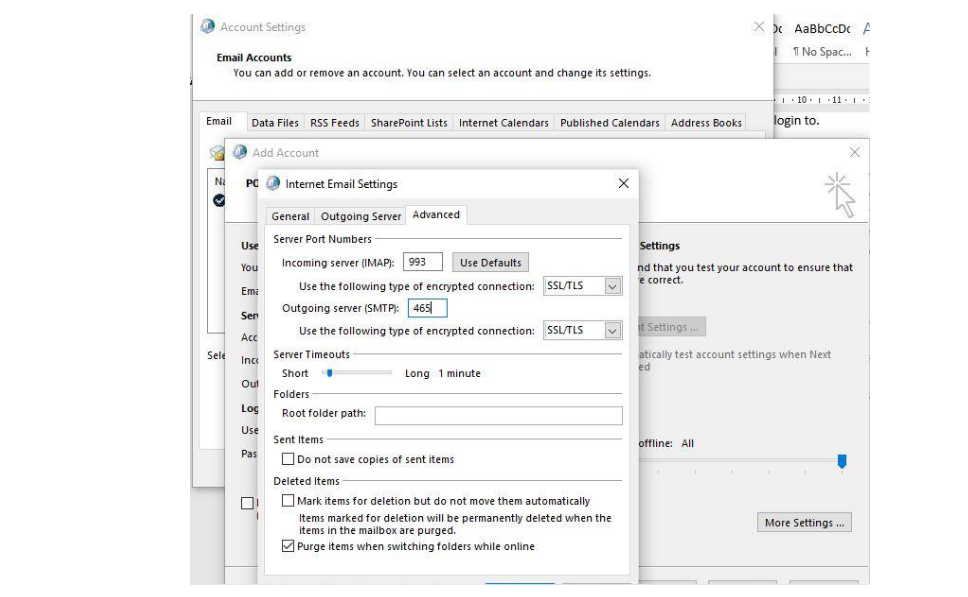
i. Under the Advanced tab:
a. Change Incoming Server IMAP Port to 993 and change the encryption type to SSL.
b. Change the Outgoing Server (SMTP) to 465 and change the encryption type to SSL.
c. Make sure the configurations are correct and click OK to save. (Check Screenshot
Below.
d. Click next, the Mail Client will connect to the server and 2 green checks will be
outpued if everything is correct, just click finish and that’s it.


